How to configure RustDesk
to connect to Silverlake's server
These instructions assume you have already installed RustDesk Client and are able to run it. You must also have the Silverlake RustDesk Server configuration string available to copy and paste.
Only do this with a Silverlake technician you know and trust — they will have remote access to your PC while RustDesk is running.
-
1
Open Settings
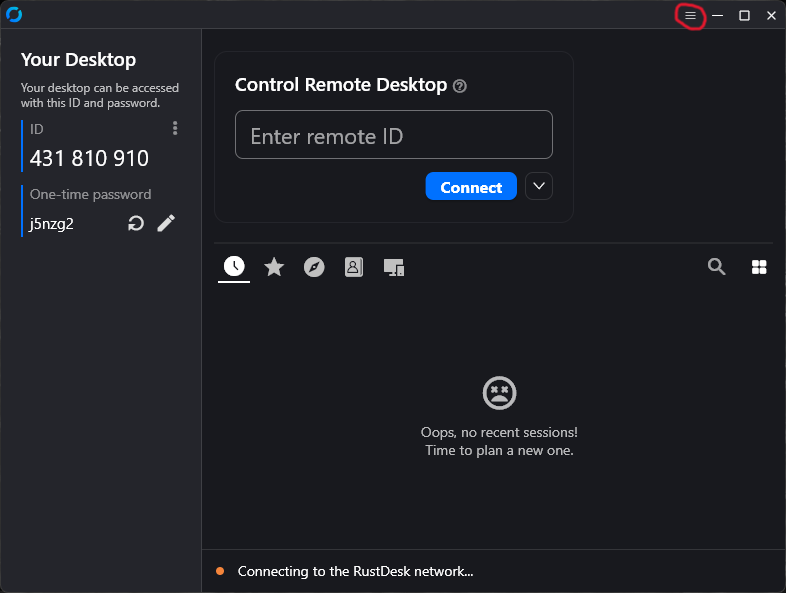
In RustDesk Client, click the Settings menu button at the top right corner of the window — it looks like three horizontal parallel lines.
-
2
Click Network
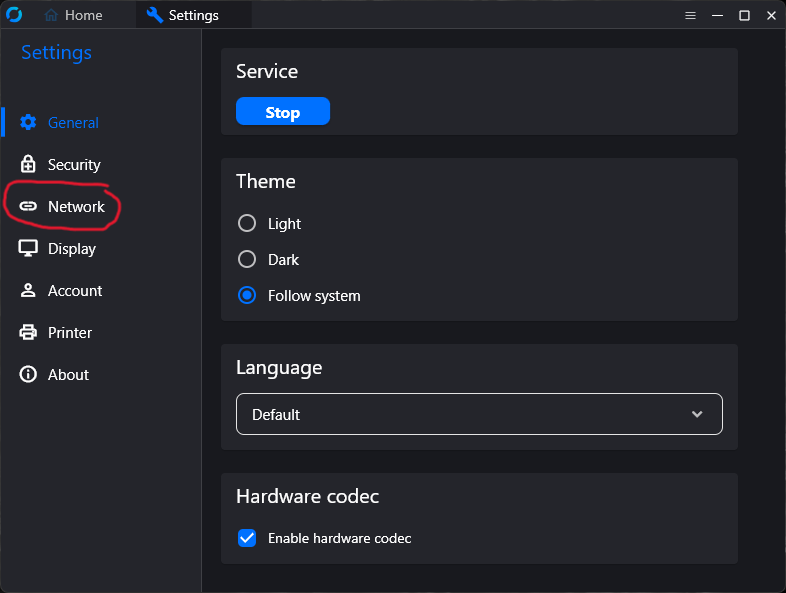
In the Settings panel, click the Network button in the left-hand column.
-
3
Unlock Network Settings
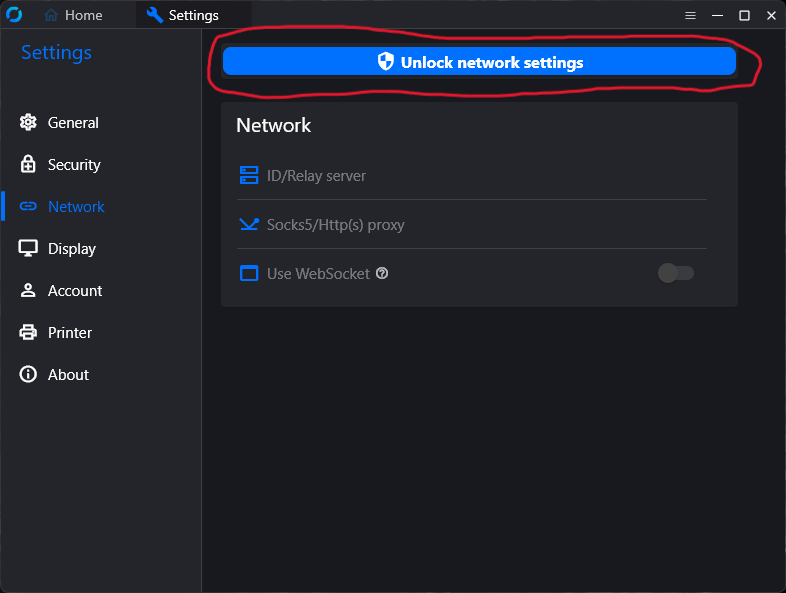
If present, click the Unlock Network Settings button.
-
4
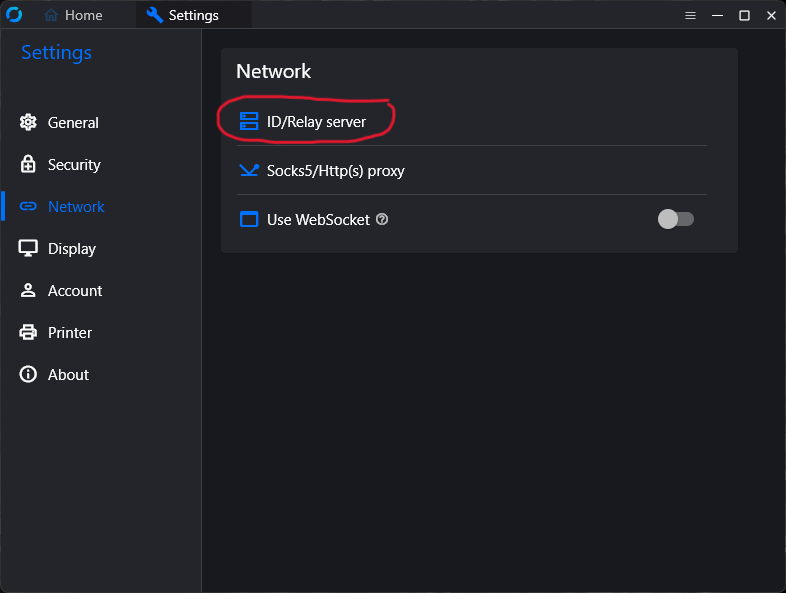
Open ID / Relay Server
In the Network settings panel, click ID/Relay Server.
-
5
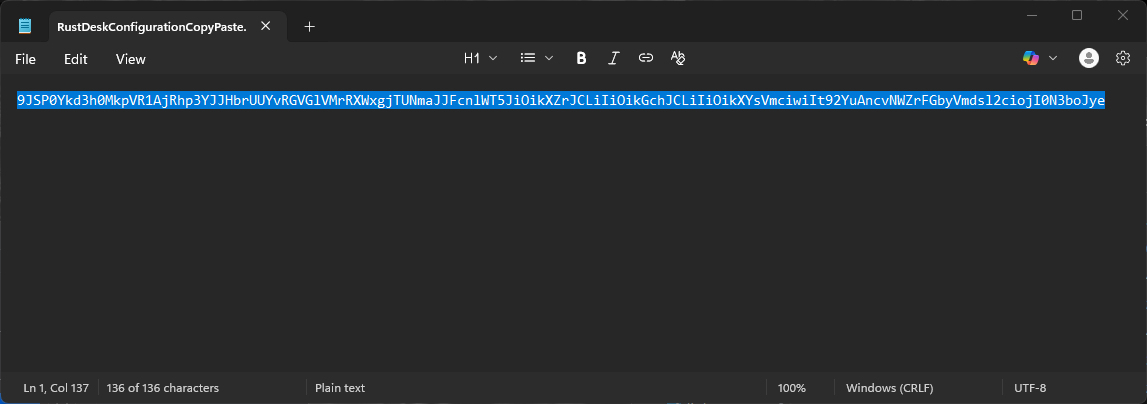
Copy your configuration string
Get the long configuration string provided by your technician — it may have been emailed to you, or shared via a network drive or web page. Select the entire string and copy it with Ctrl+C (or Cmd+C on Mac).
-
6
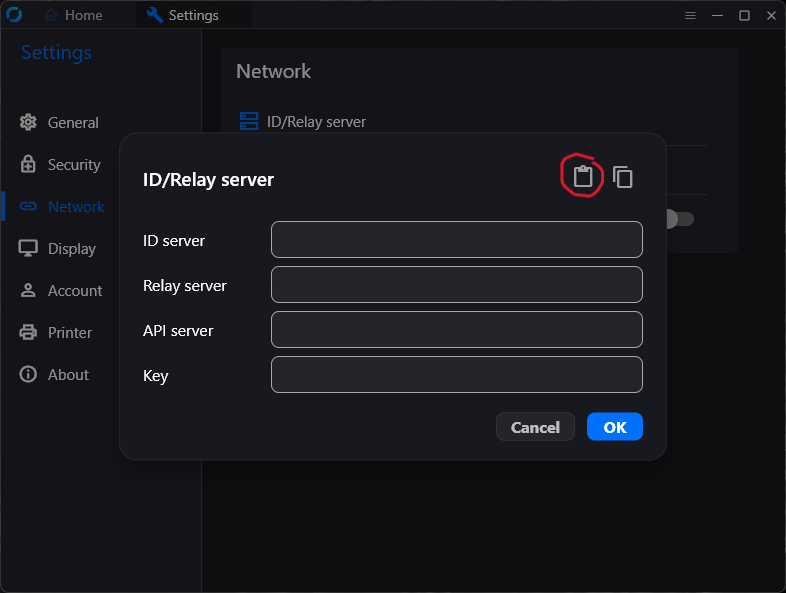
Import the settings
Back in the RustDesk Client Network settings panel, click the round button with the clipboard icon to import the string you copied in step 5.
-
7
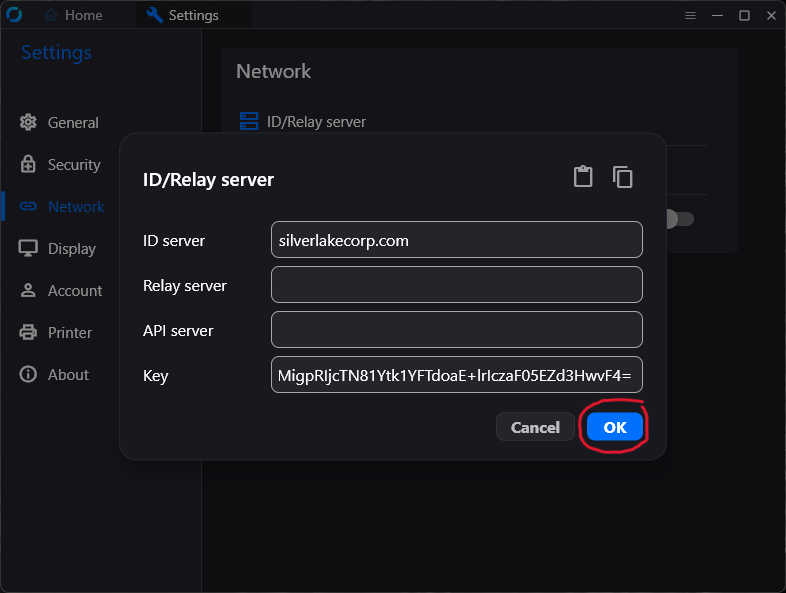
Verify the server address
You should see silverlakecorp.com fill into the top-most field called "ID Server" and a long key string fill the bottom field. If you do not see silverlakecorp.com, stop and verify you are speaking with a genuine Silverlake technician before continuing — not a scammer. You can close RustDesk and confirm via phone or email.
-
8
You're ready
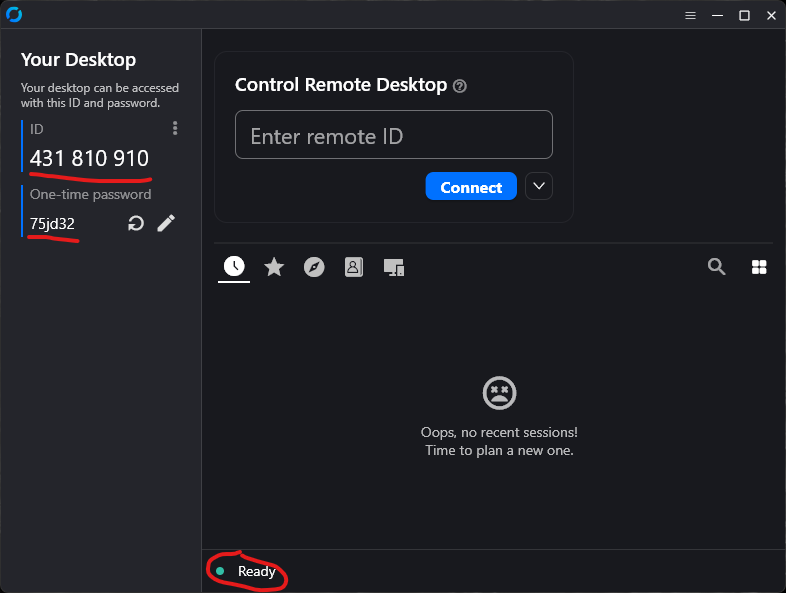
If everything looks correct and you trust the technician, click OK. You'll return to the Home screen, which should display "Ready" at the bottom. Share your ID and password with the technician — they'll initiate the connection for you to accept.